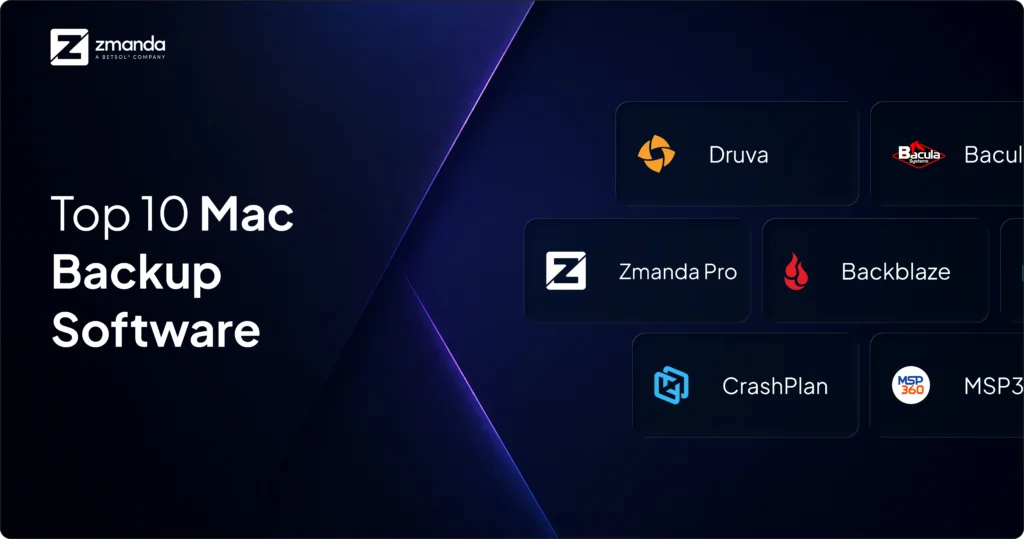
Mac-first teams face a specific challenge with backup: most enterprise backup platforms are built around Windows environments, and most consumer Mac backup tools lack the centralized management, encryption, and compliance features that business use requires. Finding best mac backup software that bridges that gap, with native macOS support and enterprise-grade controls, is the decision this guide is designed to help you make.
This comparison covers 10 leading mac backup software options across criteria that matter for business environments: centralized management, cloud and hybrid storage support, security and compliance, recovery capabilities, and total cost.
What to Look for in a Mac Backup Software?
The best cloud backup for Mac combines native macOS support, AES-256 encryption before data leaves the device, multi-cloud destination flexibility, and bandwidth controls that do not disrupt business operations during backup windows. Among the solutions reviewed here, Zmanda Pro, Backblaze Business Backup, Druva inSync, and IDrive all offer strong cloud backup capabilities for Mac environments, each with different trade-offs on storage limits, compliance features, and pricing models.
Cloud backup for Mac differs from local backup in one critical way: recovery speed depends on your internet connection and the amount of data stored remotely. For large datasets, video production, design assets, and database files, a hybrid approach that keeps a local copy for fast recovery and a cloud copy for off-site protection delivers the best of both. For smaller teams with predominantly document-based workflows, a cloud-only solution like Backblaze or IDrive is sufficient and simpler to manage.
When evaluating the best cloud backup for Mac options, prioritize solutions that encrypt data on the device before upload, not at the server, so your data is protected in transit, and your provider cannot access it without your encryption keys.
Best Mac Backup Software of 2026: Quick Comparison
| Mac Backup Software | Starting Price | Key Strength | Best For |
|---|---|---|---|
| Zmanda Pro | $5.99/month/device | Immutable, ransomware-safe | Enterprise environments |
| Acronis Cyber Backup | From $57.99/year (personal) / $68/workload/year (business) | Cybersecurity-first | Security-focused users |
| Carbon Copy Cloner | $49.99 (personal) / $125 (pro/commercial) | Bootable cloning | macOS power users |
| Backblaze Business | $99/year per computer | Unlimited storage | High-volume cloud backups |
| Arq Premium | $5.99/month or $59.99/year (1TB included) | Cloud flexibility | Technical users |
| ChronoSync | $49.99 (one-time) | Sync and scheduling | Complex sync workflows |
| Veeam Agent | Free (Community Edition) / from $250/workload/year (enterprise) | Enterprise recovery | Veeam environments |
| IDrive | From $79.50/year (5TB, promotional pricing) | Multi-device support | Multi-device users |
| Druva inSync | $8/user/month | SaaS and governance | Cloud-native enterprise needs |
| MSP360 | $49.99 + storage | White-label backup | IT service providers |
Note: Pricing and features may vary by edition or usage tier. Please refer to the official websites for the most up-to-date information.
Zmanda Pro
Zmanda Pro brings enterprise-grade reliability to macOS with centralized control, hybrid storage support, and application-aware backups. Its scalable architecture protects everything from single Mac workstations to large deployments. You get advanced deduplication, disaster recovery automation, and flexible policy control—all within a cost-effective package.
Key Features:
- Hybrid backup architecture (local, NAS, and cloud)
- Ransomware protection with immutable backups
- Application-aware backups for databases and servers
- Automated disaster recovery workflows
- Advanced deduplication and compression
- Bare-metal recovery support for rapid full-system restoration
- Centralized backup management
Acronis Cyber Backup
Acronis Cyber Backup combines backup and cybersecurity features, including anti-ransomware protection and malware detection. It supports both full disk imaging and file-level backups, offers blockchain-based integrity verification, and enables recovery to dissimilar hardware environments.
Key Features:
- AI-based ransomware protection
- Full disk imaging and file-level recovery
- Blockchain-based file integrity verification
- Universal restore to different hardware
Carbon Copy Cloner

Carbon Copy Cloner is designed for macOS, with features such as bootable backups, APFS snapshot support, and incremental backup scheduling. It offers deep system integration and cloning capabilities for macOS environments.
Key Features:
- Bootable backups with Smart Update
- APFS snapshot support
- SafetyNet to preserve deleted files
- Email alerts and detailed logs
Backblaze Business Backup
Backblaze Business Backup provides unlimited cloud storage with automated backups that run in the background. It includes a centralized dashboard for managing devices, is HIPAA-compliant, and supports extended file version history.
Key Features:
- Extended versioning for up to one year
- Centralized web-based admin panel
- Physical media restore option
- Simple user onboarding and deployment
Arq Premium

Arq is designed for users who prefer choosing their own cloud backend. It works with providers like AWS, B2, and OneDrive while encrypting data before upload. With features like deduplication, compression, and scriptable automation, Arq offers full control without vendor lock-in.
Key Features:
- Works with multiple cloud providers
- End-to-end client-side encryption
- Deduplication and storage optimization
- Command-line integration for automation
ChronoSync

ChronoSync supports bidirectional syncs and advanced scheduling triggers, perfect for users juggling multiple Macs or workflows. It enables bootable backups, version tracking, and cloud integration with a focus on automation and synchronization precision.
Key Features:
- File synchronization and scheduling
- Bootable clone creation
- Cloud sync support for multiple services
- ChronoAgent for remote access and monitoring
Veeam Agent for Mac
Veeam Agent for Mac supports image-based backups, centralized management, and integration with Veeam Backup & Replication. It includes features such as instant recovery, 3-2-1 compliance, and advanced scheduling.
Key Features:
- Image-based full system backups
- Integration with existing Veeam B&R infrastructure
- Backup copy jobs for redundancy
- Flexible backup policy automation
IDrive for Mac
IDrive offers online backups with extensive device support under one account. It features real-time file monitoring, versioning, and true archiving, ensuring files aren’t removed unless you delete them manually. Great for users managing backups across multiple endpoints.
Key Features:
- Backup for unlimited devices under one account
- Continuous data protection for critical files
- True Archiving keeps files even after deletion
- Physical media transfer for large initial backups
Druva inSync
Druva is a cloud-native SaaS platform with no infrastructure requirements. It supports global deduplication, legal hold, DLP, and compliance reporting. With rapid deployment and centralized search, it’s built for large teams that prioritize security, governance, and simplicity.
Key Features:
- Global data deduplication and compression
- SaaS-based with zero infrastructure
- Centralized backup monitoring and search
- DLP and endpoint data governance
MSP360 (CloudBerry)
MSP360 offers full backup customization for IT teams and MSPs. Its storage-agnostic architecture supports local and cloud destinations with image-level or file-based backups. Centralized web management and white-labeling make it a favorite among service providers.
Key Features:
- Integrates with AWS, Azure, Wasabi, and more
- Centralized dashboard for remote monitoring
- Custom branding and white-label support
- Compression, encryption, and retention policies
Key Considerations When Choosing the Best Mac Backup Software
Before selecting the best backup software for Mac, here are some factors to keep in mind:
1. Scalability
Will the solution grow with your business? Look for software that supports centralized management, multi-device backup, and enterprise-level controls if you’re managing teams or infrastructure.
2. Backup Frequency and Automation
Does it support real-time or scheduled backups? Automated backups ensure no data is missed and reduce manual oversight.
3. Cloud vs. Local Support
Evaluate if the tool offers hybrid options. Cloud backups provide offsite redundancy, while local storage offers faster recovery.
4. Security and Compliance
Consider solutions that offer encryption, access controls, and compliance-ready features such as HIPAA Security Rule protections and SOC 2 reporting.
5. Ease of Use and Deployment
The UI and setup should match your team’s technical comfort level. Admin dashboards, email alerts, and policy templates can save hours.
6. Disaster Recovery Capabilities
Bootable backups, instant recovery, and bare-metal restore options are essential for minimizing downtime during failure.
The Common Mistakes in Mac Backup Strategy
Even the best Mac backup software can fall short if it’s not implemented or maintained properly. Here are some of the most common mistakes businesses make when setting up their Mac backup strategy:
1. Relying Solely on Time Machine
Time Machine is built into macOS and easy to use, but it’s not designed for business use. It lacks features like cloud integration, centralized management, and disaster recovery options. Relying on it alone leaves serious gaps in protection.
2. Ignoring the 3-2-1 Backup Rule
Following the 3-2-1 rule—3 copies of your data, on 2 different media types, with 1 stored offsite—adds necessary redundancy. Backing up to a single external drive or keeping all copies onsite increases the risk of total data loss.
3. Overlooking Restore Time and Recovery Experience
A backup is only useful if it can be restored quickly and completely. Many users overlook how long recovery takes or how complicated the process is until it’s too late. Always test the full restore process before committing to a solution.
4. Skipping Regular Testing and Validation
It’s not enough to schedule backups—you must also confirm they’re actually working. Regular testing ensures backups are valid, complete, and restorable in real-world scenarios.
5. Underestimating Long-Term Costs
Some tools appear affordable upfront but have hidden costs for cloud storage, advanced features, or technical support. Evaluate the total cost of ownership (TCO) when choosing the best Mac backup software for your needs.
Final Thoughts on Mac Backup Strategy
Choosing the best Mac backup software isn’t just a technical decision—it’s a strategic one. Whether you’re protecting creative work, client data, or critical systems, the right software should offer more than just storage. It should provide automation, security, scalability, and reliable recovery when it matters most.
The tools you use must align with your workflows, compliance requirements, and long-term goals. From centralized management to hybrid storage and disaster recovery readiness, modern backup solutions are built to do more than restore files—they safeguard business continuity.
FAQs