Understanding the distinction between backing up individual files versus entire directories is crucial. When you back up a folder in Linux, you’re not just copying the contents; you’re preserving the complete directory structure, metadata, and relationships between files and learning how to backup directory in Linux is one of the most crucial skills every Linux user should master, whether you’re managing a home computer or enterprise servers.
Regular backups serve three critical purposes:
- preventing irreversible data loss
- enabling quick system recovery after failures
- facilitating smooth migrations to new hardware
This comprehensive guide will walk you through everything you need to know about backing up important Linux directories and folders efficiently, from quick emergency solutions to automated enterprise-grade backup strategies.
1. What is a Backup Directory in Linux?
A backup directory in Linux refers to a copy of your original directories and their contents stored in a separate location for protection against data loss. Unlike simple file copying, proper Linux backup directory practices preserve file permissions, ownership, timestamps, and symbolic links, ensuring your restored data functions exactly as the original.
Why is backing up Linux directories critical for system integrity? Linux systems rely heavily on configuration files stored in specific directories. A corrupted /etc directory, for instance, can render your entire system unusable. Similarly, losing your /home directory means losing all user data, customizations, and personal files. Proper Linux backup folder strategies protect against these catastrophic scenarios.

1.5 Quick Start: Backup Your Most Important Directory in 2 Minutes
Before diving into complex backup strategies, let’s get your most critical data protected immediately. Here’s a one-liner command for immediate home directory backup:
bashtar -czf ~/backup-$(date +%Y%m%d).tar.gz ~This command creates a compressed archive of your entire home directory with a timestamp, storing it as backup-YYYYMMDD.tar.gz. For emergency backup scenarios when disaster strikes, you can quickly backup any specific directory using:
bashcp -r /path/to/important/directory /path/to/backup/location/These quick solutions provide immediate protection while you implement a more comprehensive backup strategy.
2. Which Linux Directories and Folders Should You Backup?
Not all directories require backup; some contain temporary files or system-generated data that can be recreated. Here are the key directories to include in your Linux backup directory strategy:
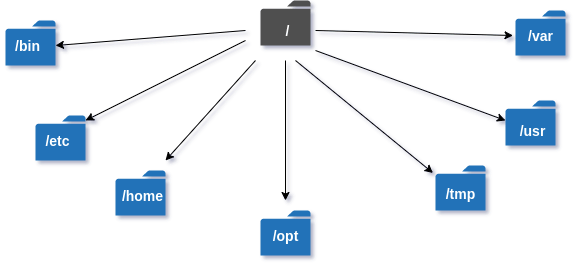
Essential directories for backup:
- /etc – Contains all system configuration files, network settings, and service configurations
- /home – Stores all user data, documents, downloads, and personal configurations
- /root – Root user’s home directory with administrative scripts and configurations
- /var – Variable data including logs, databases, and application data
- /usr/local – Custom installed software, scripts, and locally compiled programs
- /opt and /srv – Optional application data and service-specific files
Directories to exclude from backups:
- /proc, /sys, /dev – Virtual filesystems that exist only in memory
- /tmp, /var/tmp – Temporary files that can be safely deleted
- /mnt, /media – Mount points for external devices
When choosing which directories to include in your backup folder in Linux, consider your specific use case. A web server might prioritize /var/www and database directories, while a development workstation should focus on /home and project directories.
3. Methods to Backup Directory in Linux
The following methods range from simple command-line tools for quick backups to enterprise solutions designed for complex multi-server environments. Each approach offers different benefits in terms of speed, storage efficiency, automation capabilities, and ease of use. Understanding these options will help you choose the most suitable method to backup directory in Linux based on your specific requirements and technical expertise.
3.1 Using cp Command to Backup Folder in Linux
The cp command provides the simplest method to backup folder in Linux.
The basic syntax for copying directories recursively is:
bash

cp -r /source/directory /destination/directory
For preserving file attributes and permissions, use:
bash
cp -rp /source/directory /destination/directory
However, cp has limitations for backup purposes—it doesn’t handle incremental backups efficiently and can be slow for large directory structures. It’s best suited for quick, one-time copies of smaller directories.
3.2 Using tar to Create Compressed Backup Archives
The tar command excels at creating comprehensive backup archives while preserving all file attributes.
To create a backup directory archive with tar:
bash
tar -czf backup.tar.gz /path/to/directory
This command compresses the directory using gzip compression. For better compression at the cost of speed, use bzip2:
bash
tar -cjf backup.tar.bz2 /path/to/directory
To extract your linux backup folder later:
bash
tar -xzf backup.tar.gz -C /restore/location
Tar preserves permissions, symbolic links, and directory structures perfectly, making it ideal for system-level backups.
3.3 Using rsync for Efficient Linux Backup Directory Sync
Rsync stands out as the most efficient tool for linux backup directory operations, especially for incremental backups. It only transfers changed files, dramatically reducing backup time and storage requirements.
Basic local backup syntax:
bash
rsync -av /source/directory/ /backup/location/
For remote backups to another server:
bash
rsync -av /source/directory/ user@remotehost:/backup/location/
The advantages of rsync for backing up large or frequently changing directories include bandwidth efficiency, resume capability for interrupted transfers, and excellent handling of symbolic links and permissions.
3.4 Using scp for Secure Remote Backup Folder Transfer
When you need to backup folder in Linux to remote servers securely, scp provides encrypted transfer capabilities:
bash
scp -r /local/directory user@remotehost:/remote/backup/path
Scp is ideal for one-time transfers to remote locations but lacks the efficiency of rsync for regular backup operations.
3.5 Using Professional Backup Software for Linux Backup Directory
For enterprise environments or users requiring advanced features, professional backup tools offer significant advantages. Zmanda stands out as a comprehensive enterprise backup solution that simplifies linux backup directory management through its intuitive web-based interface and robust automation features. Zmanda provides enterprise-grade capabilities including centralized backup management, automated scheduling, and support for diverse storage destinations, including cloud platforms.
Solutions like BorgBackup provide deduplication, encryption, and compression:
bash
borg create /path/to/repo::backup-{now} /path/to/directory
Duplicity offers encrypted incremental backups with support for various storage backends including cloud services. These tools provide automation, scheduling, encryption, and multi-destination backup capabilities that manual commands cannot match.
4. How to Automate Backup of Linux Backup Folder or Directory
Manual backups often fail due to human forgetfulness. Automation ensures consistent protection without intervention. The most common approach uses cron jobs to schedule regular backups:
bash
# Daily backup at 2 AM
0 2 * * * tar -czf /backups/daily-$(date +\%Y\%m\%d).tar.gz /home
For snapshot-style backups, rsnapshot provides an excellent solution that maintains multiple backup versions while using hard links to save space. Configure rsnapshot in /etc/rsnapshot.conf and schedule it via cron for automatic daily, weekly, and monthly snapshots.
Best practices for backup frequency include daily backups for critical data, weekly backups for less critical information, and maintaining at least 30 days of backup history. Consider the 3-2-1 rule: keep 3 copies of important data, on 2 different media types, with 1 copy stored offsite.
4.1 Using Zmanda for Enterprise Linux Backup Automation
While command-line tools require manual scripting and monitoring, Zmanda streamlines Linux backup directory automation through its centralized management approach. This enterprise solution eliminates the complexity of managing multiple cron jobs and scripts across different servers.
Setting up automated backups with Zmanda:
- Deploy Zmanda agent on target Linux servers
- Connect servers to the central management console
- Configure backup policies defining which directories to protect
- Select storage destinations based on your infrastructure requirements
- Establish schedules and automatic retention management
- Configure security settings including encryption and access controls
Key automation capabilities include:
- Policy-driven scheduling that automatically handles backup timing and retention
- Multi-destination support for local storage, cloud platforms (AWS, Azure, Google Cloud), and hybrid setups
- Intelligent backup strategies combining incremental, differential, and full backups
- Built-in encryption for securing backup folder in linux operations
- One-click restoration of complete systems or individual directories
- Seamless integration with virtualized Linux environments
This approach transforms complex backup directory in linux management from a manual, error-prone process into an automated, enterprise-grade solution with centralized oversight and reporting.
5. Best Practices for Linux Backup Directory and Folder Management
Choosing appropriate backup storage is crucial for long-term data protection. Local disk storage provides fast access but offers no protection against hardware failure or disasters. Network-attached storage (NAS) devices offer better reliability and can serve multiple systems. Cloud storage provides off-site protection but may have bandwidth and cost considerations.
Security should be a primary concern when implementing any linux backup folder strategy. Encrypt sensitive backups using tools like GPG:
bashtar -czf - /important/directory | gpg -c > backup.tar.gz.gpgRegular testing of backup and restore processes is essential—untested backups are often worthless when disaster strikes. Schedule quarterly restore tests to verify backup integrity and practice recovery procedures.
Documentation ensures backup procedures remain consistent and can be executed by others during emergencies. Maintain written procedures including backup schedules, storage locations, encryption keys, and restoration steps.
6. Frequently Asked Questions (FAQs)
- How to preserve file permissions when backing up directories in Linux?
Use the-pflag with cp or the-aflag with rsync to preserve permissions, ownership, and timestamps. Tar preserves these attributes by default. - How to exclude specific subfolders from a backup folder?
With rsync, use--exclude='pattern'to skip specific directories. For tar, create an exclusion file and use--exclude-from=file. - Can I backup mounted external drives or network shares?
Yes, but be cautious with mount points. Ensure the filesystem is mounted before backup and consider whether you want to backup the mount point or the mounted content. - How to restore a Linux backup directory or folder?
For tar archives, usetar -xzf backup.tar.gz -C /restore/path. For rsync backups, reverse the source and destination. Always test restores in a safe environment first.
Conclusion
Backing up Linux directories and folders is not optional—it’s essential for protecting your data, configurations, and countless hours of work. We’ve covered methods ranging from simple cp commands for quick backups to sophisticated automated solutions using professional backup software.
The key to a successful backup strategy lies in choosing the right combination of tools for your specific needs, implementing proper automation, and regularly testing your backup and restore procedures. Whether you’re protecting a personal laptop with command-line tools or managing enterprise servers, Zmanda provides scalable solutions that grow with your organization’s backup requirements, offering both simplicity for small deployments and enterprise features for complex multi-server environments.

For system administrators managing complete server infrastructures, make sure to check out our complete guide on How to Backup a Linux Server for System Administrators.