Achieving robust data protection through a comprehensive 3-2-1-1-0 backup strategy with Zmanda Pro can be a game-changer. Organizations looking to safeguard their critical information and increase their resilience against modern cyber threats should explore this article on how they can implement this advanced backup approach using Zmanda Pro to ensure reliable data recovery.
Preventing Cyber Attacks With a 3-2-1-1-0 Backup Strategy
Organizations of any size—small, medium, or large are vulnerable to malicious attacks. Threat actors try to determine an entry point for a cyberattack. These entry points can include:
- Email accounts
- Social media accounts
- Mobile devices
- The organization’s technology infrastructure
- Cloud services
- People

Once the malicious actors successfully find a vulnerable entry point, they try to exploit such means to carry out a ransomware attack.
NIST defines ransomware as a malicious attack where attackers encrypt an organization’s data and demand payment to restore access. But can an organization truly be immune to attacks? The answer is no.
An organization can never have perfect security but can become resilient to ransomware attacks by building efficient strategies. One such strategy is employing the 3-2-1-1-0 backup rule.
The 3-2-1-1-0 backup strategy is a data protection method that involves creating:
- 3 copies of your data
- 2 different types of media
- 1 off-site copy
- 1 air-gapped or immutable copy
- 0 errors in the backups.
Why the 3-2-1-1-0 Backup Strategy?
The 3-2-1-1-0 backup strategy builds upon the foundational 3-2-1 backup rule by adding layers of protection critical for modern resilience. Its components ensure data redundancy, secure storage across varied media, geographic diversity, immutability, and zero errors, thus equipping organizations with a fail-safe recovery approach.
This blog explores how Zmanda enables businesses to implement this advanced backup strategy and achieve a reliable data defense.
Step-by-Step 3-2-1-1-0 Backup Strategy Implementation with Zmanda
To implement the 3-2-1-1-0 strategy with Zmanda, it’s essential to configure a robust environment for backups that includes your chosen workload, protected items, and storage vaults. Here’s a quick setup overview to illustrate Zmanda’s key components and how they support a complete backup strategy.
Key Components:
- Workload/Protected Item: The scope of data you want to back up. This can be anything from application databases to virtual machines and large file directories.
- Storage Vaults: These are the various on-site, off-site, or cloud storage media where Zmanda stores backup copies. Zmanda’s compatibility with diverse storage options allows you to customize and scale your environment easily.
Test Environment for Demonstration
For this demonstration, let’s set up a Linux filesystem as the workload. Here’s a sample structure:
STEP 1. Create a Directory:
- Define a directory (e.g., test_dir) to store files.
- Each directory has 3 files (each 500MB).
- Each file contains random characters(a-zA-Z0-9).

STEP 2: Create a Protected Item
Map it to the workload that defines the scope of backup.
- Create protected item
- Set the file type
- Select the file path to link it to the protected item.
- Create files with varying sizes and random character data to mimic real-world data diversity.

“3” Three Copies of Data, “2” Different Media
Maintaining three copies of data is foundational to resilience and with Zmanda Pro, setting up these copies is straightforward and can be customized to your organization’s Recovery Point Objectives (RPOs) and Recovery Time Objectives (RTOs) based on your business continuity needs.
Storing backups on two different media types protects against failures in a single storage medium. For instance, if one backup is compromised due to a hardware failure or localized damage, the other media type offers an unaffected copy. This diversity in storage significantly reduces the risk of data loss.
Here’s how to implement it:
STEP 3. Set up a Primary Copy:
Choose one on-premises location (e.g., NAS or SAN) and a cloud platform. This is usually stored locally on your primary systems for quick access and fast recovery. To initiate:
- Create a storage vault
- Keep the path local
STEP 4: Create the First Backup Copy; Store it in 2 Different Media:
Define your secondary storage location, typically on a separate physical or virtual disk.
- Create another Storage Vault: Use SFTP to store data in ZFS, using the storage template. This storage template is pre-configured with ZFS. Refer to 6 Steps to Harden ZFS NAS Storage for Zmanda Pro
When you choose SFTPStorageTemplate as one storage medium and Local as another, you’re storing your data in “2” different storage media. This layered approach provides the critical benefit of seamless recoverability, even if a hardware failure or natural disaster compromises one of the backup media.
STEP 5. Create the Second Backup Copy:
Configure the second backup copy to be stored on cloud storage, like AWS, Google Cloud, or Zmanda Cloud Storage. Through Zmanda’s “Storage Vault,” you can configure automated transfers to the cloud:
- Create the third storage vault
- Set Wasabi cloud as the storage path.

This multi-location setup ensures that in case of a disaster, you have multiple points from which you can retrieve your data.
STEP 6: “1” – Offsite Storage for Geographical Diversity
Offsite backups protect against localized risks such as natural disasters, fires, or site-specific failures. Having a copy stored remotely ensures that even if an entire physical location is compromised, your data remains accessible from a separate geographical area.
How Zmanda Enables Offsite Storage:
- Choose an Offsite Storage Provider: From the Zmanda Pro interface, select a storage provider for your offsite backup, such as AWS, Azure, Wasabi, or Zmanda’s cloud storage.
- Configuration in Storage Vault: When creating the storage vault, configure the destination to be offsite by choosing the cloud location in the Zmanda system.
STEP 7. “1” – Air-Gapped or Immutable Backups
To prevent backups from being tampered with or deleted, Zmanda allows you to create an immutable backup or air-gapped copy. Here’s how:
- Create an Immutable Backup: Choose Zmanda’s built-in immutability feature, which is available through integration with ZFS. In the Zmanda Storage Vault settings, enable immutability to ensure that the backup cannot be altered or deleted.
- Configuring for Air-Gapped Backups: Use Zmanda’s offline backup capability to create a fully isolated (air-gapped) copy. This involves using removable media or offline cloud storage solutions that prevent access when not in use.
STEP8: “0 Errors” – Verifying Backup Integrity to Ensure Zero Errors
Having zero errors is critical for ensuring that your backups are both reliable and recoverable. Regularly verifying backup integrity helps prevent issues such as corrupted files, partial backups, and other technical failures that could impede recovery during an actual disaster.
Zmanda Pro makes it simple to perform regular integrity checks on your backups, ensuring the “zero errors” requirement is met:
The following steps demonstrate the test plan for verifying restores using Zmanda Pro (Local path):
STEP – 1: Delete the test file.

STEP – 2: Select the storage vault you want to restore from.

STEP – 3: Select Snapshots to restore from. Make sure you note the snapshot that has been selected for restoration.

STEP – 4: Select the file to be restored.

STEP – 5: Check the Job logs for the status of the restore
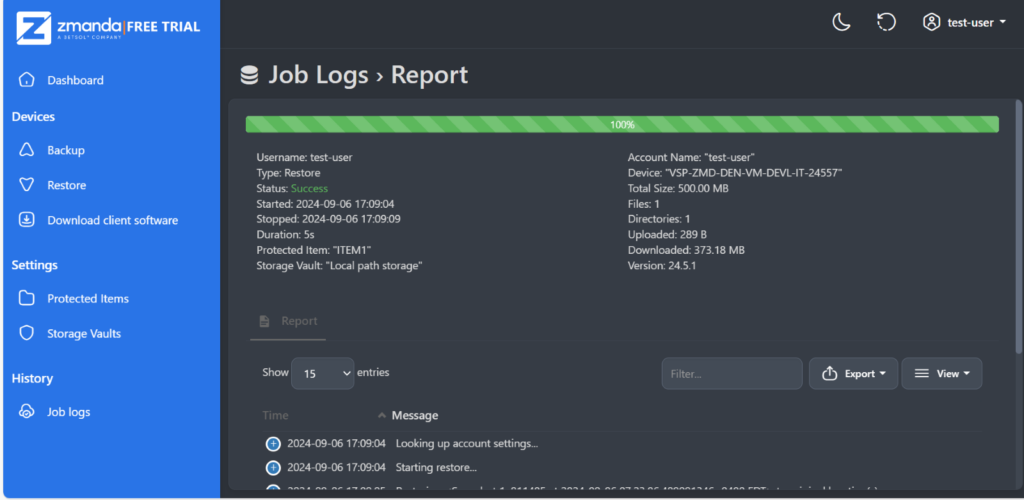
STEP – 6: Check for the files restored in the system.

STEP – 7: Check the difference between the restored file and the original file by running a diff command, if there are no differences displayed, then the restore is successful.
Thus, after successful verification of the restored files, the restored snapshot that was noted in the 4th can be noted as the snapshot with “0” errors.
Zmanda’s commitment to zero errors guarantees that your backup and recovery process remains reliable and resilient, meeting both business and regulatory requirements.
8. Zmanda’s Advanced Testing and Monitoring Features
Zmanda Pro is designed to ensure comprehensive data protection with integrated testing and monitoring tools, allowing for proactive identification of any potential issues.
- Integrated SIEM Capabilities for Real-Time Monitoring: Zmanda Pro integrates with Security Information and Event Management (SIEM) systems, offering real-time alerts on anomalies, failed recovery attempts, or unauthorized access.
- Proactive Threat Detection: Zmanda Pro provides intelligent monitoring tools that assess potential vulnerabilities within the backup environment, alerting your team immediately in case of suspicious activity or hardware issues.
- Automated Compliance Audits and Reporting: For organizations requiring regular compliance audits, Zmanda Pro offers automated reporting features. These reports ensure that your backup and recovery processes align with regulatory requirements, helping you maintain adherence to standards like CCPA, HIPAA, and PCI-DSS.
Ready to Implement 3-2-1-1-0 Backup Strategy with Zmanda Pro?
Incorporating the 3-2-1-1-0 strategy into your backup and disaster recovery plan provides a solid foundation for business resilience. With Zmanda Pro, implementing each component of this strategy becomes streamlined and effective, from creating multiple backups across varied media to ensuring zero errors through continuous testing. Try Zmanda Pro 14-day Free Trial today.
If you’re looking to improve data resilience and disaster preparedness, Zmanda offers a free consultation to help you assess your backup needs. Schedule a 30-minute free consultation session with a Zmanda expert today and discover how Zmanda Pro can transform your data protection strategy.