Configure AWS Storage Gateway With ZMC
In this document, learn how to install ZMC. Follow these simple steps on the server where ZMC is installed to...
Like tape rotation, drive rotation is an effective and proven way to create secure offsite copies of your data. Zmanda Pro can easily be used to implement a drive rotation strategy.
For a successful drive rotation implementation, you must have a storage target with enough space for your dataset (keeping retention policies in mind) and an adequate interface per your speed and reliability requirements.
NOTE: USB and eSATA are the most common interfaces used for drive rotation strategies. USB 3.2 and eSATA have theoretical speeds of 20Gbps and 6Gbps respectively.
We recommend doing your research before selecting your storage device and interface.
You must also have an active Zmanda Pro contract and a device with the corresponding interface for your storage target (e.x. if backing up a VM, use USB passthrough).
We will also assume that you have already created a user for the device you will back up, installed the agent on the device, and logged in.
You will first need to determine how many storage devices you will rotate, how often you will rotate them, and your retention policy.
As an example in this article, we will rotate drives every week, use 4 drives (one for each week of a month), and retain data for 4 weeks. This will allow us to maintain 4 versions of the full dataset, 3 of which can be kept offsite and offline.
After determining your overall strategy, you can begin to implement it by creating individual storage vaults within the Zmanda Pro web console.
Go to the backup user profile > Storage Vaults. Then, for each drive, click Add new vault > Custom > fill out the details for your storage vault. Note that you will be using the Local Path storage vault type. When you’re done, you should see something like this:

You can use this strategy with any protected item type. Configure the protected item as you would normally (See instructions here). Special instructions for the scheduling page are in the next section.
 button
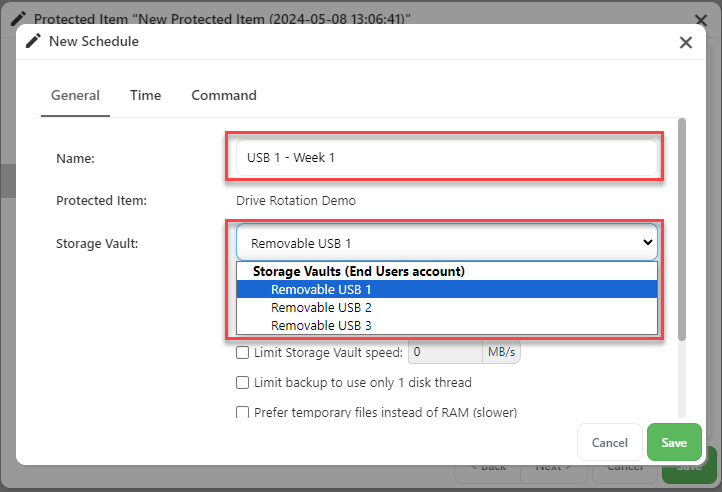 button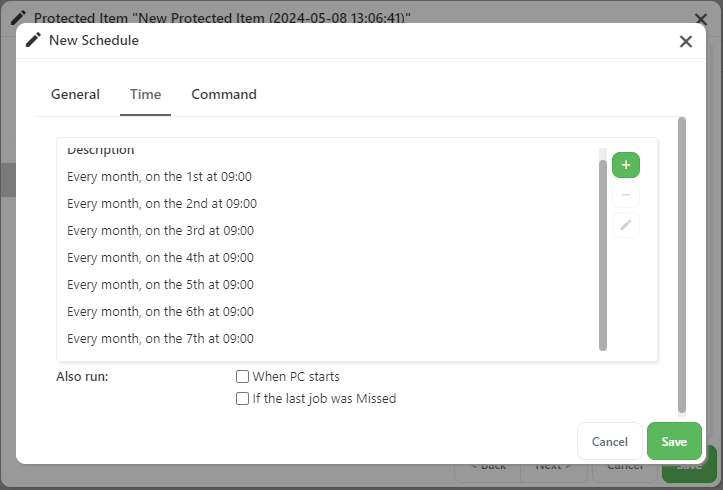
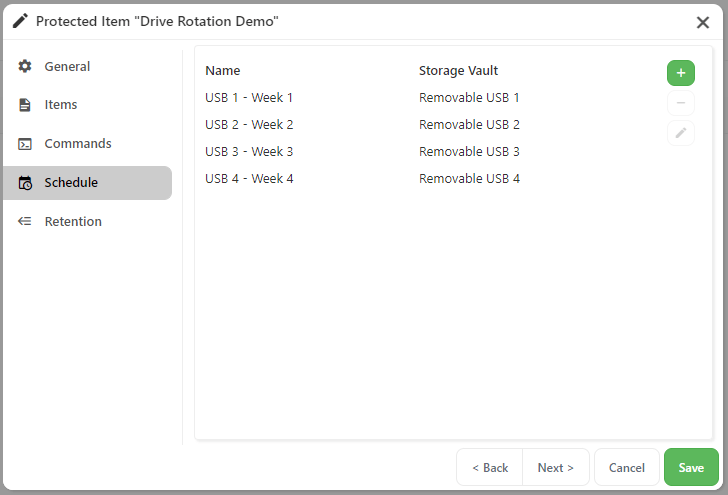
Ensure that you rotate your drives according to the schedule you have set. You will see errors if the expected storage device is not present, even if the storage device from the previous week is still attached.
If this happens, simply switch in the drive that is expected for that given time frame and run a backup manually. Subsequent scheduled backups will continue to run at the originally configured times.
For help implementing a drive rotation strategy or any questions about the strategy, contact our support team: [email protected]

Contact us for a free 30-minute consultation and learn how our fully managed solution can protect your business and streamline your operations. Get started with Zmanda Pro today!
Book a meeting