Synology NAS is the most common backup storage target for Proxmox environments in SMB and mid-market IT shops. The combination is practical: most teams already have a Synology device on the network, NFS setup is straightforward, and the cost-per-TB is favorable compared to dedicated PBS hardware. What trips teams up is the configuration detail — NFS export permissions, root squash settings, PBS datastore paths, and the subtle differences between using a NAS as raw vzdump storage versus as a PBS-backed datastore.
This guide covers proxmox backup to nas across the most common setups: proxmox backup server with synology nfs, TrueNAS NFS configuration, and direct vzdump-to-NAS for teams not yet running PBS. We’ll walk through each configuration, the common failure points, and performance considerations that determine whether the setup is reliable at production scale.
See How Zmanda Pro Protects Proxmox
Two Ways to Use NAS Storage for Proxmox Backup
Before configuring anything, understand which approach you are taking — they require different setup steps and deliver different capabilities:
| Approach | How It Works | Backup Type | Deduplication | Best For |
|---|---|---|---|---|
| vzdump directly to NFS | Proxmox VE mounts the NFS share as a storage target; vzdump writes .vma.zst files directly to it | Full backups only | No | Simple setups, <20 VMs, no PBS required |
| PBS datastore on NFS path | PBS is installed on separate hardware; its datastore directory is mounted from the NAS via NFS | Incremental (CBT) | Yes (chunk-level) | Environments wanting PBS dedup with NAS storage capacity |
For most SMB environments, the direct vzdump-to-NFS approach is simpler and sufficient for smaller VM counts. For environments with 20+ VMs or tight storage budgets, the PBS datastore approach provides deduplication and incremental backup — at the cost of additional PBS hardware and the performance penalty of running chunk operations over NFS (see performance section below).
Proxmox Backup Server with Synology NFS: Step-by-Step Setup
This covers using a Synology NAS as the storage backend for a PBS datastore — the setup that gives you PBS incremental backup with Synology NAS capacity.
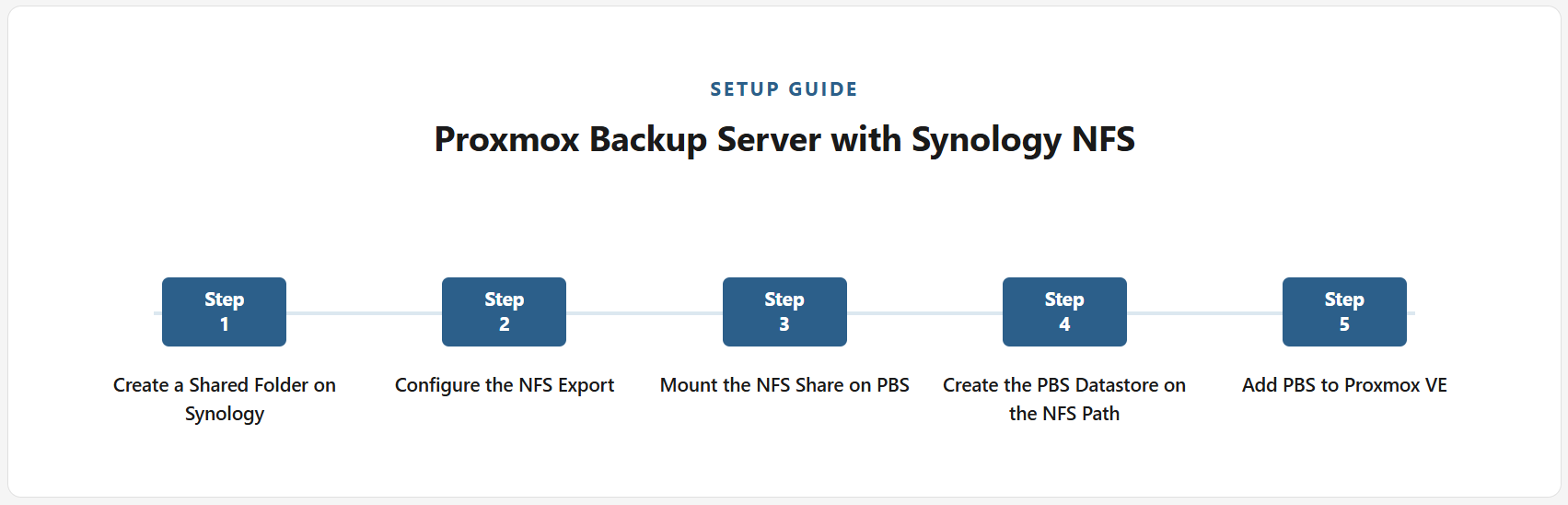
Step 1: Create a Shared Folder on Synology
In Synology DSM, open Control Panel → Shared Folder → Create. Name the folder (e.g., proxmox-backup). Disable the Recycle Bin for this folder — it will accumulate PBS chunk files and fill the NAS unexpectedly. After creating the folder, note the full path (e.g., /volume1/proxmox-backup).
Step 2: Configure the NFS Export
In DSM, go to Control Panel → Shared Folder → select the folder → Edit → NFS Permissions → Create. Configure:
- Hostname or IP: The IP of your PBS server (not the PVE node — PBS is the NFS client here)
- Privilege: Read/Write
- Squash: No mapping (this disables root squash). This is the critical setting — root squash maps root on the NFS client to nobody on the server, which prevents PBS from writing chunk files with the correct permissions. With root squash enabled, all PBS write operations fail.
- Security: sys
- Enable asynchronous: Optional — improves write performance at a small consistency risk acceptable for backup workloads
Step 3: Mount the NFS Share on PBS
On the PBS server, create a mount point and mount the Synology NFS share:
mkdir -p /mnt/synology-backup
mount -t nfs [SYNOLOGY-IP]:/volume1/proxmox-backup /mnt/synology-backup
For persistent mounting, add to /etc/fstab:
[SYNOLOGY-IP]:/volume1/proxmox-backup /mnt/synology-backup nfs defaults,_netdev 0 0Verify the mount works: df -h /mnt/synology-backup should show the Synology volume capacity.
Step 4: Create the PBS Datastore on the NFS Path
In the PBS web UI, go to Administration → Datastore → Add Datastore. Set the path to the NFS mount point: /mnt/synology-backup. PBS will create its chunk directory structure within this path. After creating the datastore, configure prune and GC schedules immediately.
Step 5: Add PBS to Proxmox VE
On the Proxmox VE node, navigate to Datacenter → Storage → Add → Proxmox Backup Server. Enter the PBS IP, backup user credentials, datastore name, and TLS fingerprint from the PBS dashboard. Port 8007 must be open from PVE to PBS.
Direct vzdump to Synology NFS: Simpler Setup, Full Backups
If you are not running PBS and want to back up Proxmox VMs directly to a Synology NAS as storage, the setup is simpler — Proxmox VE mounts the NFS share directly as a storage target and vzdump writes full backup files to it.
In Proxmox VE: Datacenter → Storage → Add → NFS. Fill in:
- Server: Synology NAS IP address
- Export: The NFS share path (e.g.,
/volume1/proxmox-backup) - Content: Select VZDump backup file
The NFS export on Synology must allow write access from the Proxmox VE node’s IP. For this direct approach, root squash settings are similarly critical — vzdump runs as root on the PVE node and needs write access to the NFS share. Configure NFS permissions with No mapping (disable root squash) for the PVE node’s IP.
Proxmox Backup to TrueNAS: NFS Configuration
TrueNAS NFS configuration follows the same logical steps as Synology but with a different UI path. In TrueNAS SCALE or CORE:
- Create a dataset: Storage → Datasets → Add Dataset (e.g.,
tank/proxmox-backup). - Create an NFS share: Shares → Unix (NFS) Shares → Add. Set the path to the dataset.
- Under Advanced Options, add the PBS server’s IP as an allowed host. Set Maproot User to
rootand Maproot Group towheel— this is TrueNAS’s equivalent of disabling root squash for the specified host. - Mount the NFS share on PBS using the same steps as the Synology setup above.
Common TrueNAS NFS issue: the dataset permissions may need chmod 777 or ACL adjustment to allow PBS to create directories and write chunk files. If PBS datastore creation fails with a permission error, check dataset ACLs in TrueNAS before adjusting NFS export settings.
NAS Backup Performance: What 1 GbE Actually Means for Backup Windows
Network throughput caps how fast backups complete. For Synology and TrueNAS setups over a standard 1 GbE connection:
| Network | Real-World Throughput | Time to Back Up 1 TB | Practical VM Count Limit |
|---|---|---|---|
| 1 GbE | 80–90 MB/s | ~3–4 hours | <20 VMs (with full backups) |
| 10 GbE | 800–900 MB/s | ~20–25 minutes | 20–100+ VMs |
| 25 GbE | 2,000+ MB/s | ~8 minutes | Large enterprise |
For environments with more than 20 VMs running full backups nightly over 1 GbE, the backup window typically exceeds 8 hours — which either overlaps with business hours or requires moving to incremental backup architecture. A dedicated backup VLAN on 10 GbE is the practical solution. If a physical 10 GbE upgrade is not immediately feasible, PBS incremental backup significantly reduces the data transferred per job, making 1 GbE practical for larger VM counts at the cost of PBS infrastructure.
PBS Datastore on NFS: Performance Considerations
Running a PBS datastore on an NFS-mounted path (rather than locally-attached storage) introduces overhead specific to PBS’s chunk-based architecture. PBS chunk operations — lookups, writes, deduplication index queries — generate a high volume of small file I/O operations. NFS latency on these small operations is higher than local disk latency, even on a fast local network.
In practice: PBS deduplication and backup operations on an NFS-backed datastore are slower than on locally-attached ZFS. For environments where PBS hardware budget is constrained and NAS capacity is available, the tradeoff is acceptable. For environments where backup window duration is a hard constraint, locally-attached ZFS on dedicated PBS hardware is the right architecture. The Proxmox Backup Server complete guide covers this architecture decision in full detail.
For teams managing NAS-backed backup across multiple workload types beyond Proxmox VMs, Zmanda Pro’s NFS and iSCSI backup support provides centralized management, automated alerting, and policy enforcement across all workloads from a single console — without per-node NFS configuration for each new Proxmox cluster. See the full range of enterprise backup solutions that complement NAS-backed infrastructure.
See what enterprise Proxmox backup looks like beyond native tools.
Troubleshooting Common Proxmox NAS Backup Errors
The most frequent failures and their fixes:
- Permission denied on backup write: Root squash is enabled on the NFS export. Set squash to No mapping (Synology) or configure Maproot User to root (TrueNAS) for the PBS or PVE client IP.
- Mount fails at boot (PBS can’t reach NAS): The
_netdevflag is missing from the/etc/fstabentry. Without it, the system tries to mount the NFS share before the network is available. - Stale NFS file handle errors: The Synology or TrueNAS rebooted and the NFS session expired. Remount manually:
umount -f -l /mnt/synology-backup && mount /mnt/synology-backup. - Slow PBS operations on NAS: NFS overhead on chunk I/O. Consider moving the PBS datastore to locally-attached storage and using the NAS only for a second copy via sync jobs.
- Recycle Bin filling NAS storage: DSM Recycle Bin captures deleted PBS chunk files. Disable the Recycle Bin on the shared folder used for backup storage.
Also read Proxmox Backup Server: The Complete Guide for IT Teams
FAQs